How to Prepare Your Laptop for a Windows Upgrade
MA
Check System Requirements
Before upgrading your laptop to a new version of Windows, it's crucial to ensure that your device meets the necessary system requirements. Check the official Windows website for the specific requirements of the version you plan to install. Pay attention to the processor, RAM, and available storage space. Ensuring compatibility will prevent installation issues and optimize performance post-upgrade.

Backup Important Data
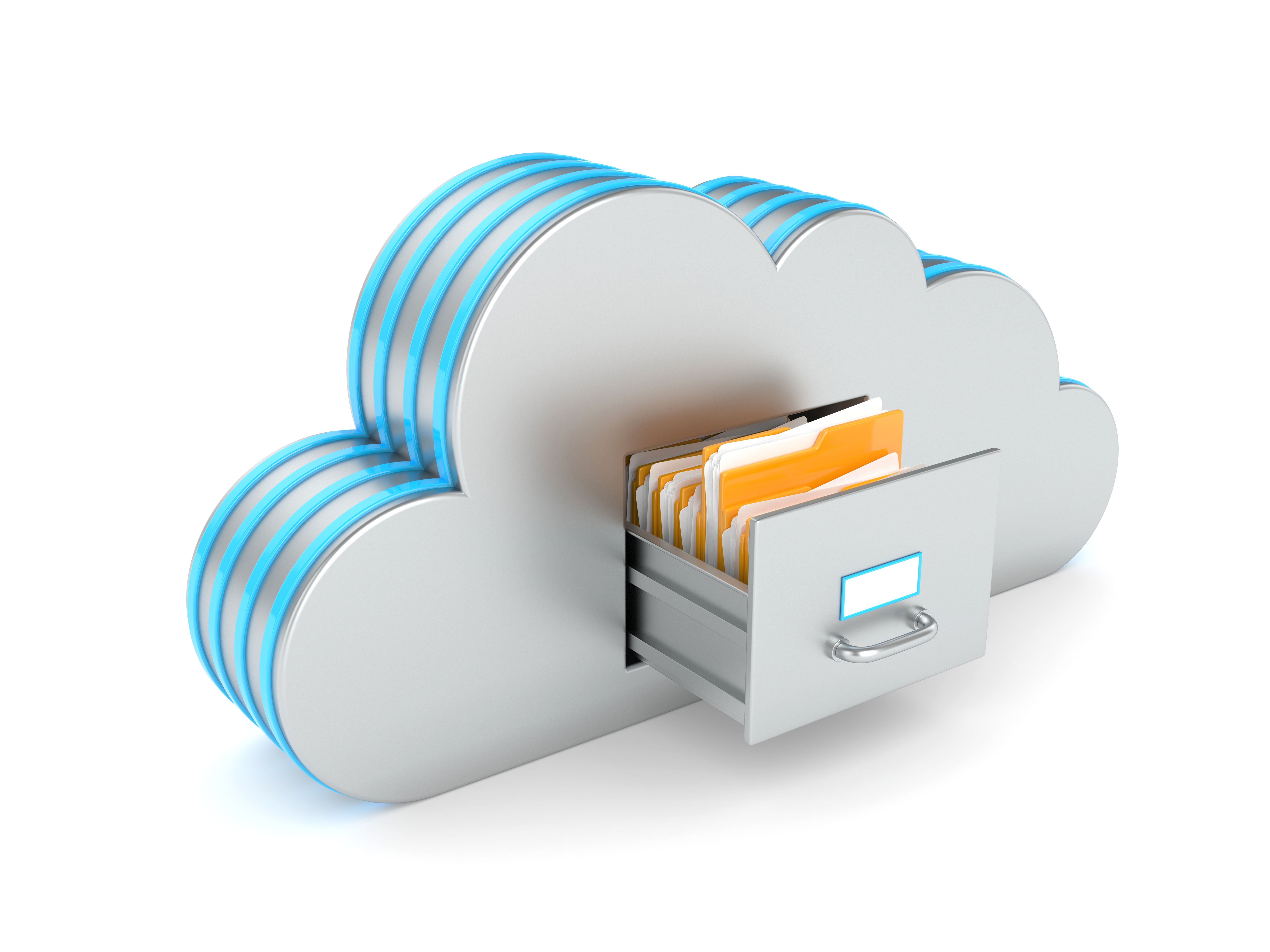
One of the most important steps before any major system upgrade is to back up your data. Use an external hard drive or a cloud storage service to save important files such as documents, photos, and personal data. This precautionary measure will protect your information in case anything goes wrong during the upgrade process.
Create a System Image
Creating a system image is another way to safeguard your data. This process involves making a copy of your entire system, including the operating system and installed programs. In the event of an upgrade failure, you can restore your laptop to its previous state quickly and easily.
Free Up Disk Space
Ensure your laptop has enough free space to accommodate the new Windows installation. Delete unnecessary files and uninstall unused programs to create additional space. Consider using disk cleanup tools to remove temporary files and system caches, which can take up valuable space.
Move Files to External Storage
If your disk space is still limited, consider moving large files, such as videos and music, to an external hard drive. This step will not only free up space but also make your laptop run more efficiently during and after the upgrade.
Update Drivers and Software
Before upgrading, update all your drivers and essential software to ensure they are compatible with the new Windows version. Visit the manufacturer's website for the latest drivers for your hardware components. Updated drivers can prevent compatibility issues and improve system stability.
Uninstall Incompatible Programs
Some programs may not be compatible with the new version of Windows. It's a good idea to uninstall these applications before upgrading. You can check the software developer's website for compatibility information and reinstall the programs after the upgrade if they are supported.
Disable Antivirus and Firewall
Temporarily disable your antivirus and firewall software during the upgrade process. These security programs can sometimes interfere with the installation. Remember to re-enable them once the upgrade is complete to keep your laptop protected.
Check Device Compatibility
Finally, verify that all your peripheral devices, such as printers and external drives, are compatible with the new Windows version. Update their drivers if necessary to ensure seamless operation post-upgrade.