How to Upgrade Your Windows Laptop: Step-by-Step Guide
MA
Upgrading your Windows laptop can significantly improve its performance and extend its lifespan. Whether you're looking to boost speed, increase storage, or enhance graphics, upgrading is often more cost-effective than buying a new machine. In this guide, we’ll walk you through the process step by step.
Preparing for the Upgrade
Before you start, it’s crucial to determine what upgrades your laptop can handle. Not all laptops support every type of upgrade. Check the laptop’s manual or manufacturer’s website to find out about the compatibility and maximum capacity for components like RAM and storage.
Backup Your Data: Always ensure that your important data is backed up before proceeding with any upgrade. Use an external hard drive or cloud storage to secure your files.

Upgrading Your RAM
One of the most common upgrades is increasing your laptop’s RAM (Random Access Memory). More RAM can help your laptop run more applications simultaneously and improve overall performance.
Steps to Upgrade RAM
- Turn off your laptop and unplug it from any power source.
- Remove the battery if possible to ensure safety.
- Open the back panel using the appropriate screwdriver.
- Locate the RAM slots and remove the existing RAM by gently pushing the clips on the sides.
- Insert the new RAM module, ensuring it clicks into place.
- Close the back panel and reattach the battery.

Upgrading Your Storage
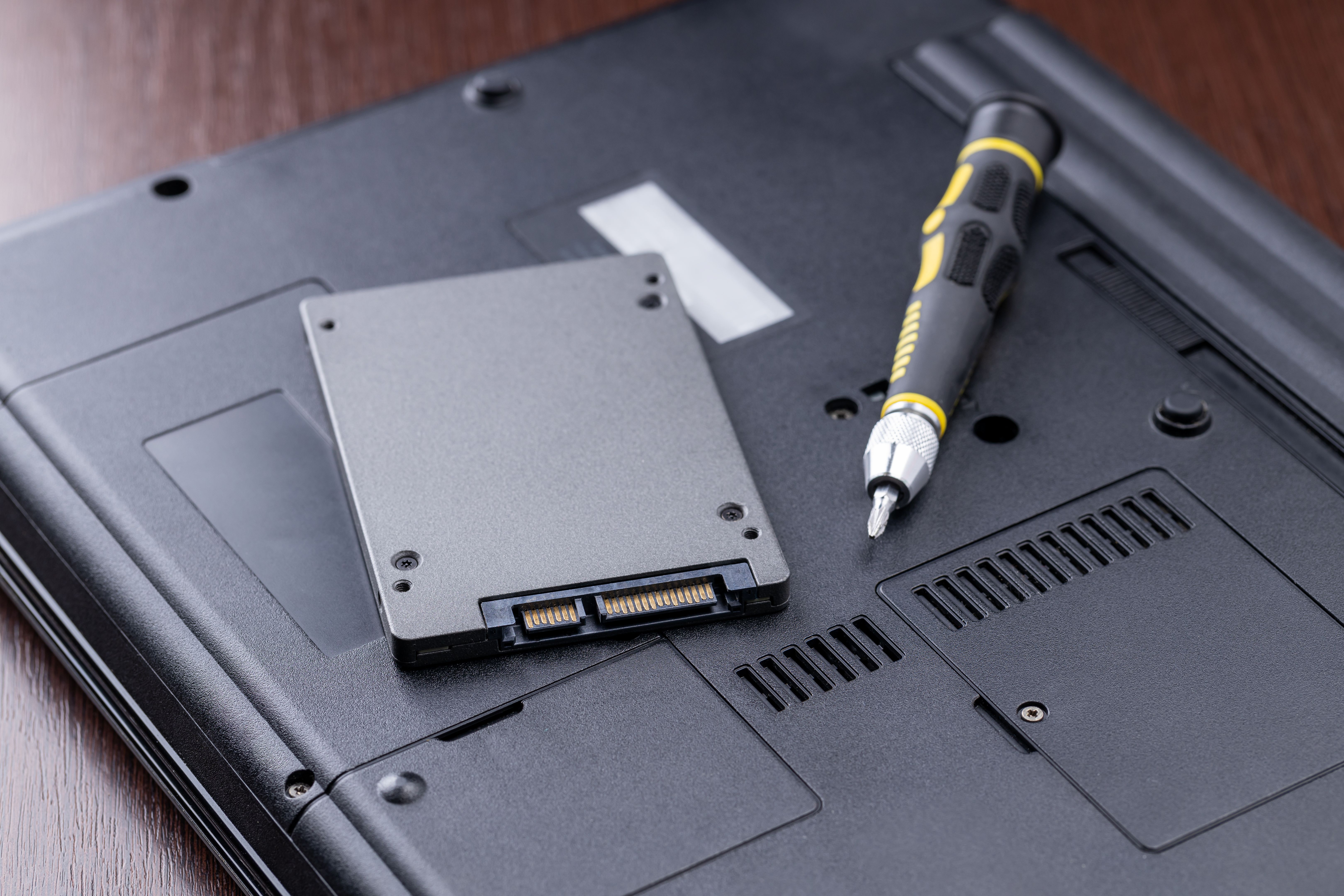
Upgrading to a Solid State Drive (SSD) from a traditional Hard Disk Drive (HDD) can make a significant difference in speed. SSDs are faster, more reliable, and consume less power.
Steps to Upgrade Storage
- Back up your data to ensure nothing is lost during the transition.
- Turn off the laptop and disconnect it from power.
- Remove the back panel to access the existing drive.
- Unscrew and carefully remove the current drive.
- Install the new SSD by securing it with screws.
- Reassemble the laptop and restore your data from the backup.
Enhancing Graphics
While upgrading graphics on a laptop is not as straightforward as on a desktop, some models allow you to use an external GPU (eGPU) for improved graphics performance. This can be particularly useful for gaming or graphic design.
Considerations: Make sure your laptop supports eGPU functionality and that you have the necessary connections, like Thunderbolt 3, for optimal performance.
Conclusion
Upgrading your Windows laptop can breathe new life into your device, making it faster and more efficient. Whether you choose to boost the RAM, switch to an SSD, or enhance graphics, each upgrade offers its own set of benefits. Always remember to check compatibility and back up your data before proceeding. Enjoy your upgraded laptop!