Signs You Need an iPad Battery Replacement and How to Get It Done Right
MA
Recognizing the Signs of a Failing iPad Battery
Your iPad is a powerhouse of productivity and entertainment, but like all electronic devices, it relies on a healthy battery to function effectively. Over time, you might notice that your iPad's battery isn't holding up as well as it used to. Here are some signs that your iPad might need a battery replacement:
- Rapid Battery Drain: If your iPad's battery percentage drops quickly, it may be time for a replacement.
- Unexpected Shutdowns: Devices shutting down even when there's battery remaining is a clear indicator.
- Slow Charging: Taking longer than usual to charge can signal battery issues.
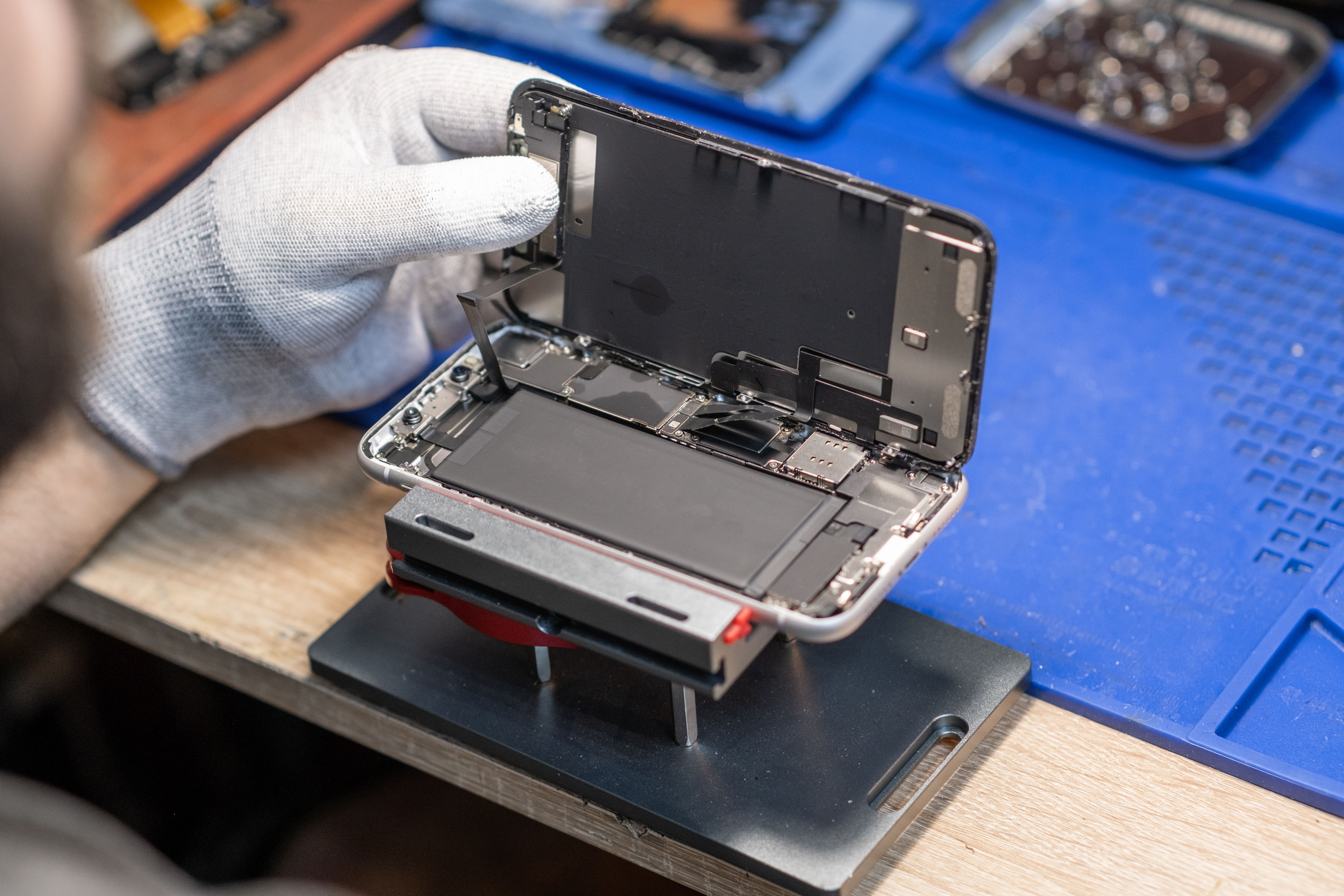
Checking Battery Health
Before deciding on a replacement, it's a good idea to check the health of your iPad's battery. You can do this by navigating to the battery settings in your iPad. Here, you'll find detailed information about your battery's performance and health status. If the health percentage is significantly lower than 100%, it might be time to consider a replacement.

Choosing the Right Replacement Option
Once you've determined that a battery replacement is necessary, you need to decide how to proceed. There are several options available:
- Apple Store: Visiting an official Apple Store ensures you get a genuine replacement with a warranty.
- Authorized Service Providers: These providers are certified by Apple to perform repairs.
- DIY Kits: For tech-savvy individuals, there are kits available online, though this may void warranties.
Why Professional Replacement is Recommended
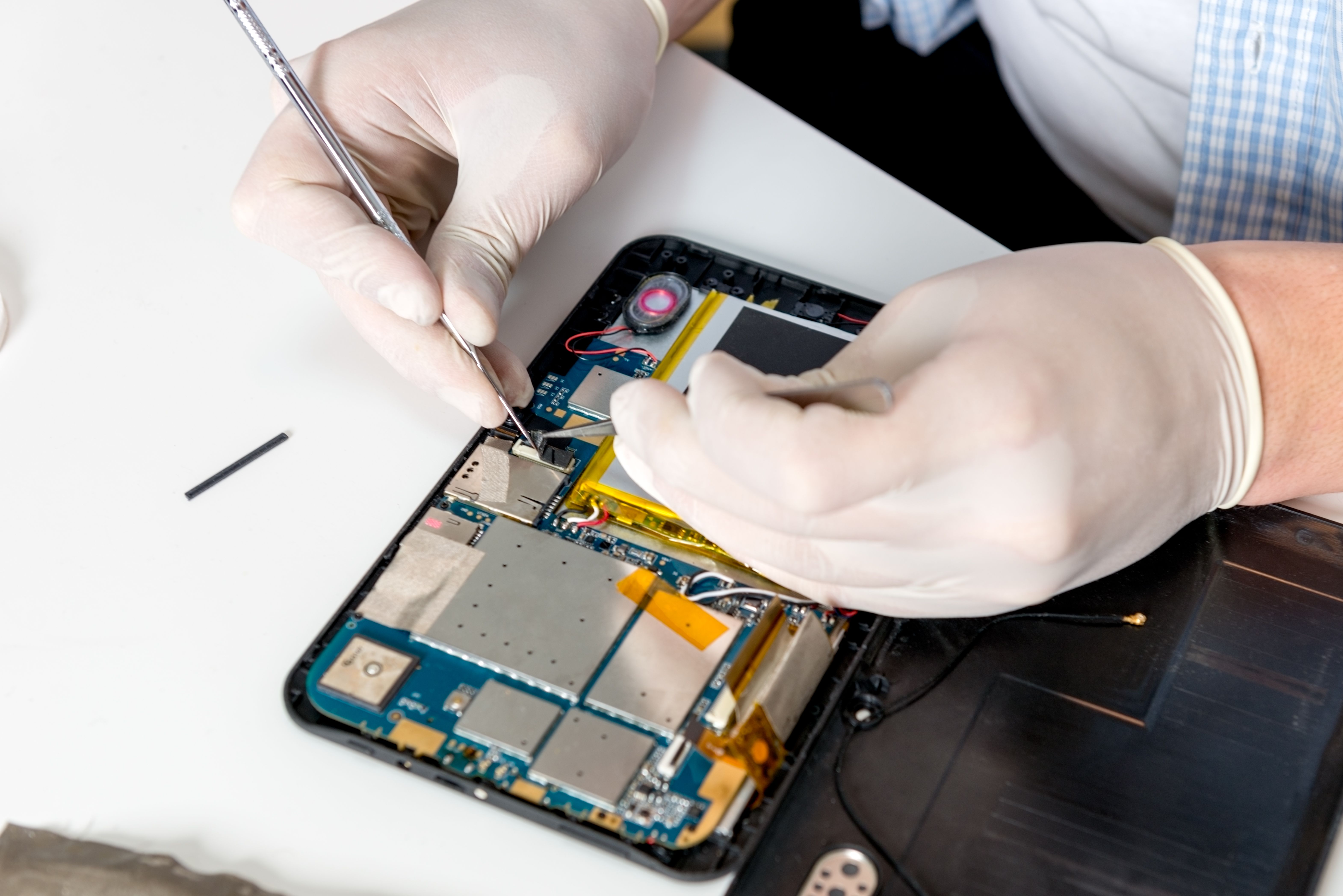
While the DIY route might seem tempting, professional replacement is often the best option. Certified technicians ensure that your iPad is handled carefully and that the new battery is installed correctly. This reduces the risk of further damage and ensures that your iPad continues to function optimally.
Preparing for the Replacement
Before handing your iPad over for a battery replacement, back up your data. This ensures that you won't lose any important information during the process. You can use iCloud or iTunes to create a backup of your device. Additionally, make sure to remove any personal accessories like cases or screen protectors.

Post-Replacement Care
After your iPad's battery has been replaced, it's important to condition the new battery. For the first few charge cycles, let the battery drain completely before charging it to 100%. This helps in optimizing the battery's longevity and performance.
By being proactive about your iPad's battery health, you can ensure your device remains a reliable companion for years to come. Remember, addressing battery issues promptly not only enhances performance but also extends the life of your device.